WhatsApp Web and QR Code Hijacking
Scanning a WhatsApp Web QR code links a computer to your account. Scammers trick people into scanning their code to read chats. How QR hijacking works and how to stop it.

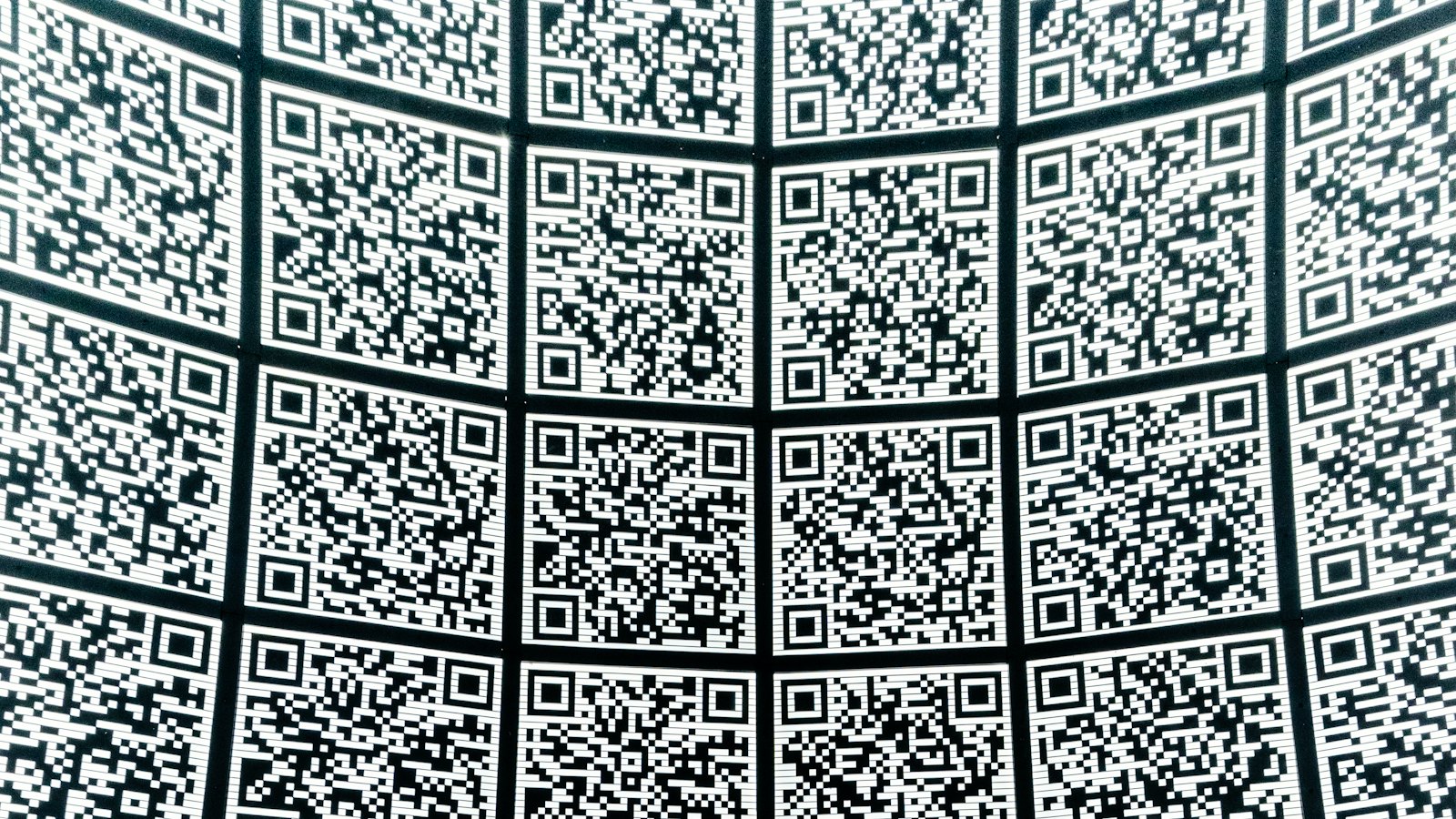
To use WhatsApp on a computer, you open WhatsApp Web or the desktop app, and it shows a QR code. You scan it with your phone, and that computer is linked to your account. Anyone who gets you to scan their QR code gets the same access.
How QR hijacking happens
- "Scan this to verify": a fake support agent or seller sends a QR image and asks you to scan it in WhatsApp.
- "Scan to join our group" or "to claim your prize", with a code that is really a WhatsApp Web login.
- Borrowed phone: someone with brief access to your unlocked phone scans a code on their own laptop.
Only scan a WhatsApp Web code on a screen you control, after you opened WhatsApp Web yourself.
Signs your account is linked elsewhere
- An unknown device or browser under Linked devices.
- Messages marked as read that you have not opened.
- Sent messages you did not write.
What to do
- Go to Settings, Linked devices and log out anything unfamiliar. See linked devices.
- Lock your phone with a PIN or biometric. See phone screen lock.
- Turn on two-step verification.
- Warn contacts if messages were sent. See warning your contacts.
Related: QR code phishing. For more, see our guide to WhatsApp scams.
Frequently asked questions
What does scanning a WhatsApp Web QR code do?
It links the computer or browser showing the code to your WhatsApp account, so it can read and send messages.
When is it safe to scan one?
Only when the code is on your own computer screen and you started the linking yourself.
How do I remove a device I linked by mistake?
Go to Settings, Linked devices, tap the device and choose Log out.
Sources
- About linked devices, WhatsApp Help Center
- How to check devices linked to your account and unlink a device you don't recognize, WhatsApp Help Center
- How to unlink a device, WhatsApp Help Center