Authenticator Apps: Setup and Backup
Authenticator apps generate sign-in codes on your phone and are safer than text messages. How to set one up, back it up, and move it to a new phone without getting locked out.

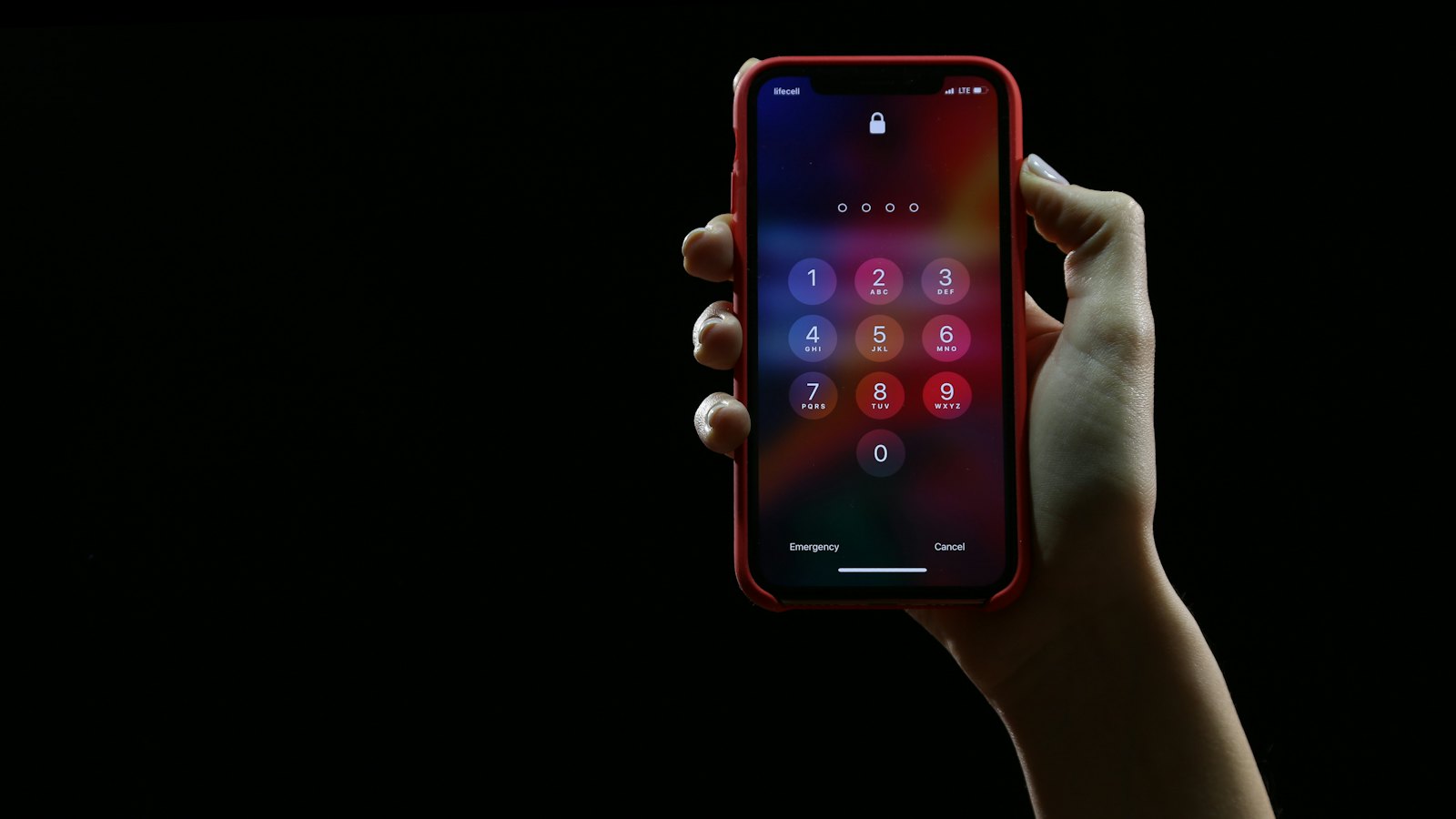
An authenticator app is a small app on your phone that shows a new six-digit code every 30 seconds for each account you connect. When you sign in, you type the current code. Because the codes are made on your phone, not sent by text, they are safer against SIM swap fraud and interception. Setting one up takes a few minutes; backing it up properly is what keeps you from being locked out later.
Choosing an app
Widely used options include the authenticator apps from Google and Microsoft, and many password managers also generate codes. Look for:
- a reputable developer, installed from the official app store
- backup or sync, so codes survive a lost phone
- an app lock (PIN or biometrics)
How to set it up
- Install the app from your phone's official app store.
- Open the account's security settings (for example, your email) on your computer and choose to add an authenticator app.
- Scan the QR code shown on screen with the authenticator app.
- Enter the code the app shows to confirm it works.
- Save the backup codes the site offers. See backup codes.
Never scan a QR code for an authenticator that someone sent you. Only set up authenticators from inside your own account settings. A scammer can use a QR code to connect their app to your account.
How to back it up
- Turn on the app's backup or sync feature if it has one, protected by a strong account password.
- Save backup codes for each important account, stored in your password manager or printed and kept safe.
- Add a second method, such as a passkey or second device, on your most important accounts.
Moving to a new phone
- Keep your old phone working until the move is finished.
- Use the app's transfer or sync feature to move codes to the new phone.
- Check that each important account works with the new phone before resetting the old one.
- If an account did not move, sign in with a backup code and set up the authenticator again.
See changing phones without losing access for a full checklist.
Using codes safely
- Only type codes into the site you are signing in to, after checking the web address.
- Never read codes to anyone who calls or messages you.
- If you are asked for a code you did not expect, someone may have your password: change it.
Asked to share an authenticator code? That is a scam. Paste the message into CyberWatch AI Scan for a free check.
Authenticator apps are a strong step in how to protect your accounts. Stronger still are passkeys.
Frequently asked questions
Why is an authenticator app better than text message codes?
Codes are generated on your phone, so they are not affected by SIM swap fraud or text message interception. They also work without mobile signal.
What happens if I delete the authenticator app?
Unless your codes are backed up or synced, you may lose access to them. Use backup codes or the app's backup feature before deleting it or changing phones.
Can an authenticator app be phished?
Yes, if you type the code into a fake website or read it to a scammer. Only enter codes on the real site you are signing in to, and never share them.
Sources
- Use Two-Factor Authentication To Protect Your Accounts, US Federal Trade Commission
- Multifactor Authentication, US Cybersecurity and Infrastructure Security Agency
- Sign in with backup codes, Google Account Help