What Is a Passkey?
Passkeys let you sign in with your fingerprint, face or phone PIN instead of a password, and they cannot be phished. What passkeys are, how they work, and where to start using them.

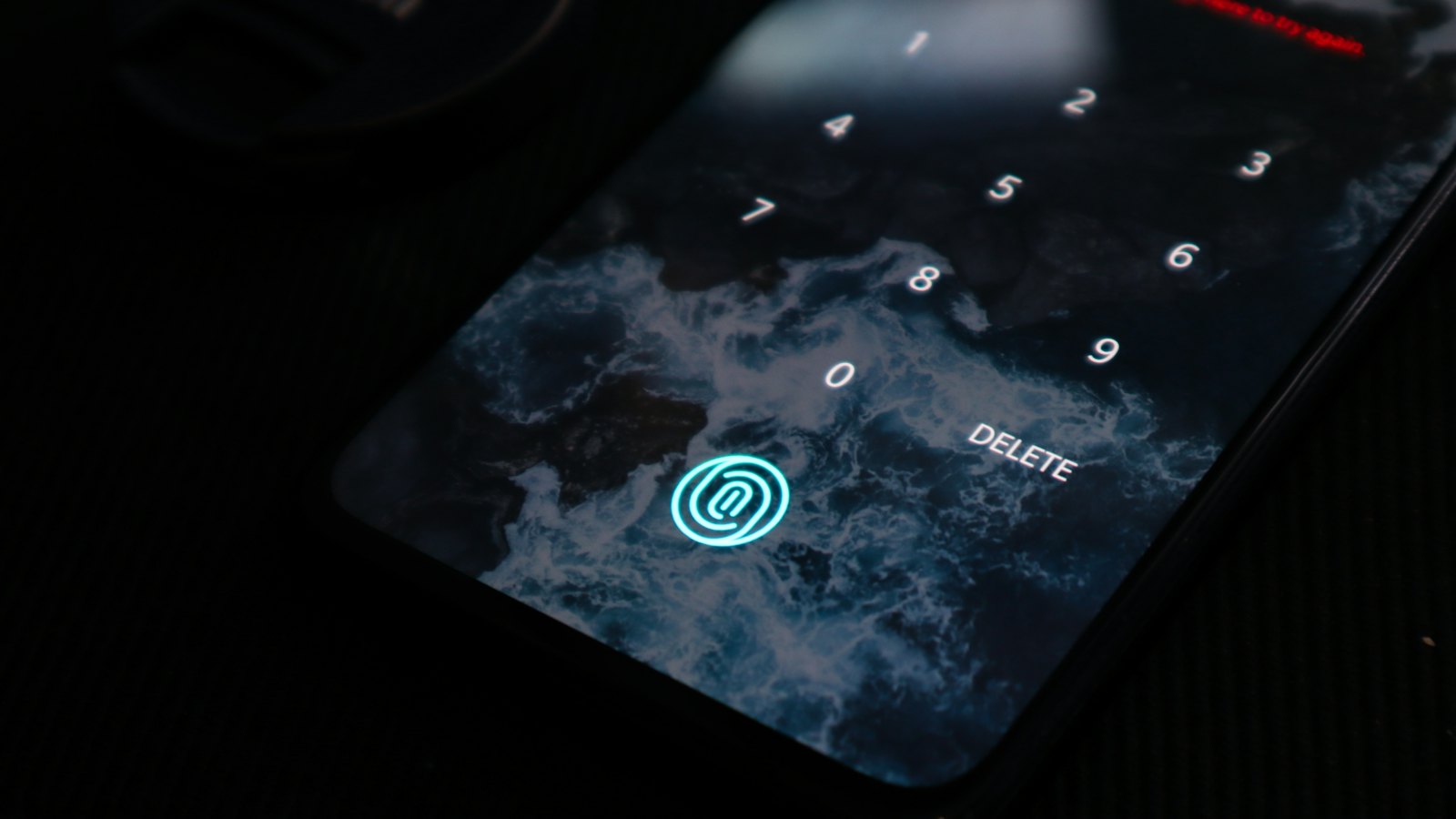
A passkey is a way to sign in without a password. Instead of typing something you remember, you confirm it is you the same way you unlock your phone: with your fingerprint, your face, or your device PIN. Passkeys are supported by many major services, and they are one of the biggest improvements in account security in years.
Passkeys in plain English
When you create a passkey for an account, your device makes a pair of matching digital keys:
- a private key that stays safely on your device or in your password manager, and
- a public key that the website keeps.
When you sign in, the website checks that your device holds the matching private key. You approve with your fingerprint, face or PIN. There is no password to type, remember, reuse, leak or steal.
Why passkeys are safer
| Problem with passwords | How passkeys solve it |
|---|---|
| People reuse them | Each passkey is unique to one site. |
| They leak in breaches | The website only stores the public key, which is useless to thieves. |
| They can be phished | A passkey only works on the genuine site it was made for, so a fake site cannot use it. |
| They are hard to remember | You just use your fingerprint, face or PIN. |
Your fingerprint or face never leaves your device. It only unlocks the passkey locally. The website never sees it.
Where to start
- Your main email account. Many large email providers support passkeys.
- Your password manager, if it supports passkeys.
- Other major accounts as they offer passkeys: shopping, social media, payment services.
Look for "passkeys" in the security settings of each account. Our step-by-step guide on setting up passkeys on your main accounts walks through it.
Where passkeys are stored
- On your phone or computer, often synced through your phone's cloud account so they move with you to a new device.
- In a password manager that supports passkeys.
- On a physical security key, for people who want extra protection.
Things to know
- Keep a backup way in, such as backup codes or a second device, for important accounts. See backup codes.
- Protect the account your passkeys sync to with a strong password and two-step verification.
- Keep your device's screen lock strong, because it guards your passkeys.
- Some older services do not support passkeys yet. Keep strong unique passwords there.
Beware of fake "passkey setup" emails. Set up passkeys from inside your account settings, not through links. If in doubt, paste the email into CyberWatch AI Scan.
Passkeys are the strongest option for how to protect your accounts. For the other methods, see what is two-step verification.
Frequently asked questions
Is a passkey the same as my phone's PIN or fingerprint?
Not quite. Your PIN, fingerprint or face unlocks the passkey stored on your device. Your fingerprint or face is not sent to the website.
Can passkeys be phished?
Passkeys are designed to resist phishing, because they only work on the genuine website they were created for. A lookalike site cannot use them.
What happens if I lose my phone?
Passkeys stored in a synced password manager or your phone's cloud account can be restored on a new device. Keep a backup sign-in method on important accounts too.
Sources
- Sign in with a passkey instead of a password, Google Account Help
- Multifactor Authentication, US Cybersecurity and Infrastructure Security Agency
- Implementing phishing-resistant MFA (fact sheet), US Cybersecurity and Infrastructure Security Agency