Changing Phones Without Losing Access
A checklist for moving to a new phone without getting locked out: authenticator apps, passkeys, banking and mobile money apps, WhatsApp, and when it is safe to reset the old phone.

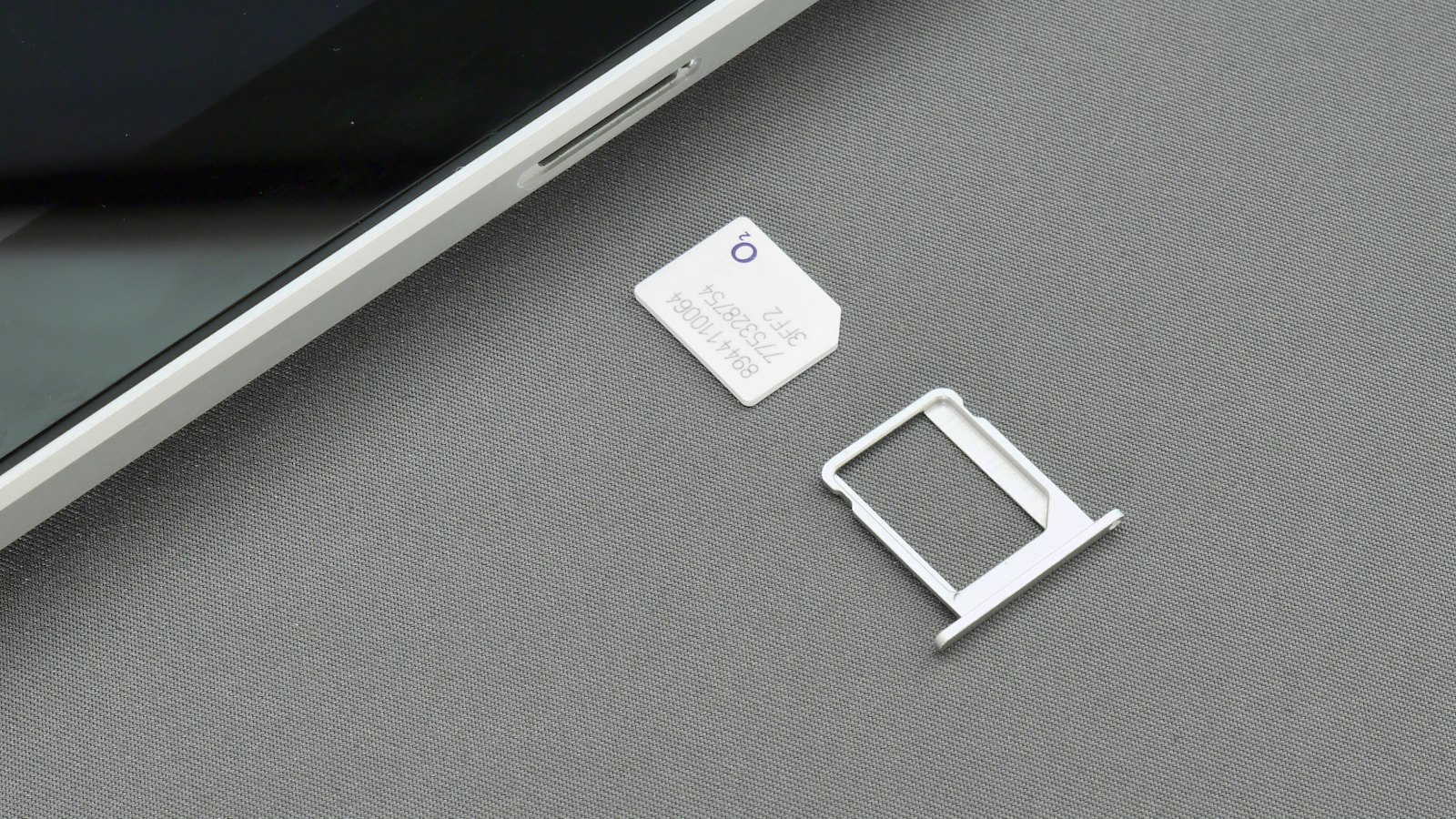
A new phone is exciting until you discover your authenticator codes did not come across, your banking app wants re-registration, and the old phone is already wiped. Most lockouts after a phone upgrade are avoidable with one rule: keep the old phone working until everything works on the new one.
Before you switch
- Back up the old phone to your cloud account or computer.
- Check your authenticator app has backup or sync turned on, or note which accounts use it.
- Find your backup codes for important accounts. See backup codes.
- Make sure you know your passwords, ideally in a password manager.
- Check WhatsApp chat backup is recent.
Moving over: the checklist
| Item | How it usually moves |
|---|---|
| Cloud account | Sign in on the new phone first. Contacts, photos and synced passkeys follow. |
| Password manager | Install the app and sign in. Check passkeys and passwords appear. |
| Authenticator app | Use its transfer or sync feature, then test each important account. See authenticator apps. |
| Banking and mobile money | Re-register the device through the app, following the bank's official steps. |
| Restore from backup when you verify your number on the new phone, and re-enable two-step verification. | |
| Email and social apps | Sign in, and check two-step verification still works. |
Test before you reset
- Sign out and back in to your email using the new phone for two-step verification.
- Open banking and mobile money apps and check you can log in.
- Test a couple of accounts that use your authenticator.
- Only then sign out of the old phone and reset it. See selling or giving away an old phone.
Beware of "help" with your new phone. Real bank staff will not ask for your PIN or codes to "activate" a new device. Only follow steps in the official app or at a branch.
Changing your number at the same time?
Update the phone number on your email, banking, mobile money and social accounts before the old number stops working. See phone number recycling.
Got a message about "activating" your new phone? Paste it into CyberWatch AI Scan for a free check.
For more, read protecting your phone and number in our complete guide.
Frequently asked questions
When is it safe to reset my old phone?
Only after you have checked that every important account works on the new phone: email, banking, mobile money, WhatsApp, your password manager and any account using an authenticator app.
Will my passkeys move to the new phone?
Passkeys saved in your phone's cloud account or a password manager usually sync when you sign in on the new phone. Check a couple of important accounts before resetting the old one.
Do banking apps transfer automatically?
Usually not fully. Most banking and mobile money apps need you to register the new device again, often with a code sent to your number or a visit to the bank.
Sources
- How To Remove Your Personal Information Before You Get Rid of Your Phone, US Federal Trade Commission
- Sign in with backup codes, Google Account Help
- Use Two-Factor Authentication To Protect Your Accounts, US Federal Trade Commission