Moving From Old Passwords to a Password Manager
You have a password manager, but years of old and reused passwords. A gradual, low-stress plan to move your accounts over, starting with the ones that matter most.

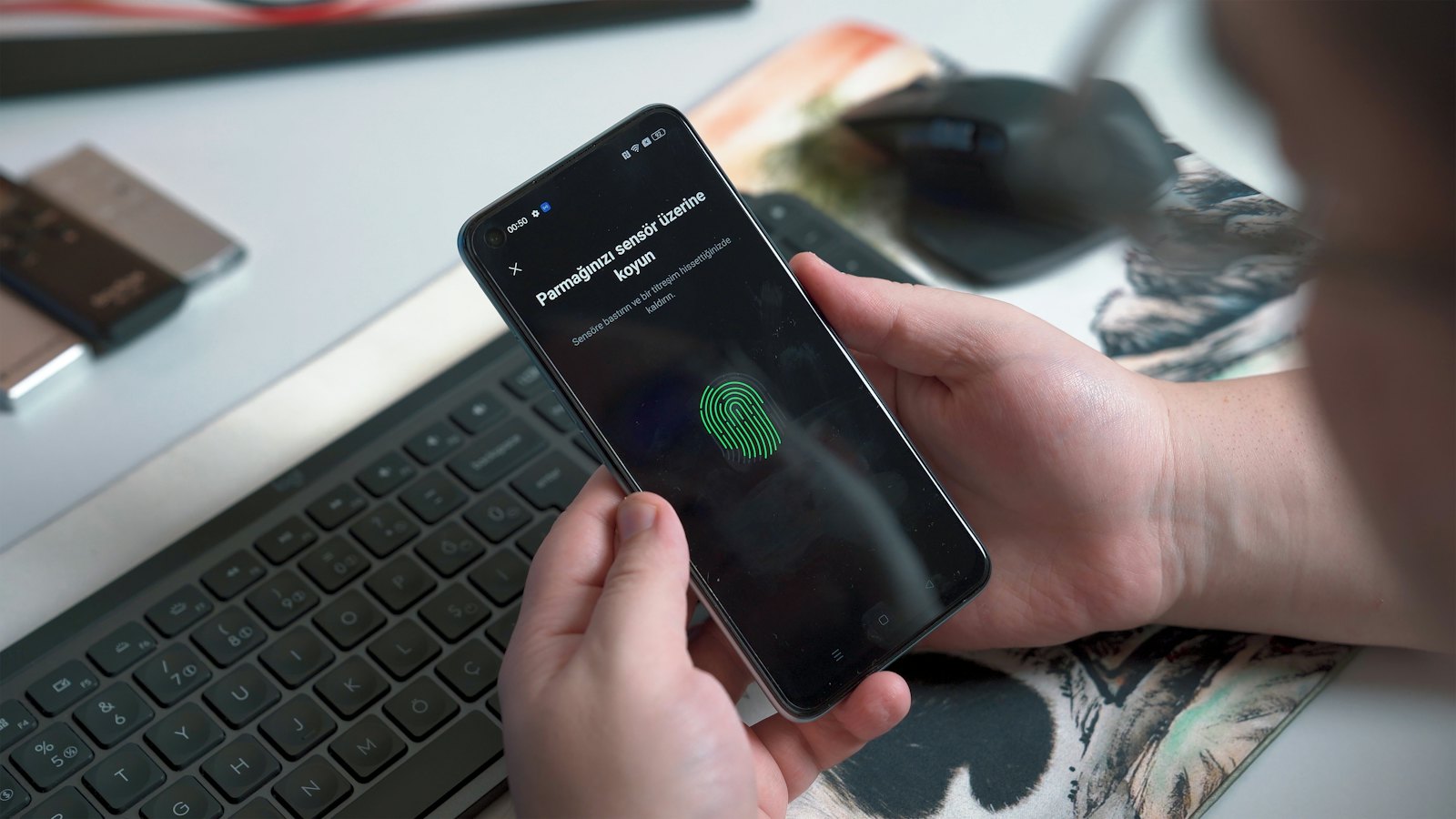
Installing a password manager is the easy part. The daunting part is the years of old passwords: some reused, some written on scraps of paper, some forgotten. You do not have to fix them all at once. This plan moves you over gradually, securing what matters most first.
Week 1: the essentials
- Set up the manager properly: a strong main passphrase, two-step verification, and saved recovery details. See how to set up a password manager.
- Import existing passwords from your browser if the manager offers it, then turn off saving in the browser.
- Change these passwords to new, unique ones generated by the manager:
- your main email account
- banking and mobile money
- your mobile network account
- your main social media accounts
- your phone's app store or cloud account
- Turn on two-step verification for each of them.
Why email first? Password resets for your other accounts go to your email. Securing it protects everything else. See why your email is the key to everything.
Weeks 2 to 4: as you go
Each time you log in to a site, let the manager generate a new password and save it. This spreads the work over normal life. Prioritise:
- shopping sites with saved cards
- work-related and government accounts
- cloud storage and photo services
- anything flagged as reused or leaked by the manager's security check
Month 2: clean up
- Run the security check again and fix what remains.
- Close accounts you no longer use. See deleting old online accounts.
- Replace true security answers with random ones stored in the manager. See security questions.
- Shred paper lists of old passwords once everything is in the manager.
Tips that make it easier
- Install the manager's browser extension and phone app so filling is automatic.
- Keep your main passphrase memorable and practise it daily for the first week.
- Write the main passphrase and recovery key on paper and keep them somewhere safe at home until you are confident.
- Check whether your email appears in known breaches. See how to check.
Watch out for fake "import" or "migration" emails pretending to be from your password manager. Only use the official app.
Unsure about a security email? Paste it into CyberWatch AI Scan for a free check.
For the full picture, read our complete guide to identity theft and account security.
Frequently asked questions
Should I import my saved browser passwords?
Importing is a quick way to get everything in one place. After importing, turn off password saving in the browser so you are not managing two lists, and then gradually replace reused passwords with new unique ones.
How long does it take to move everything?
Securing your most important accounts takes an evening. Updating the rest can happen gradually over a few weeks as you log in to each site.
What about accounts I no longer use?
Close them if you can, or at least change the password so an old reused one is not a risk. See our guide to deleting old online accounts.
Sources
- Creating Strong Passwords and Other Ways To Protect Your Accounts, US Federal Trade Commission
- Have I Been Pwned, Troy Hunt
- Top tips for staying secure online, UK National Cyber Security Centre