Browser Notification Spam and Fake Alerts
Pop-up alerts saying you have viruses or have won prizes, even when the browser is closed? How websites trick you into allowing notifications and how to turn them off on phone and computer.

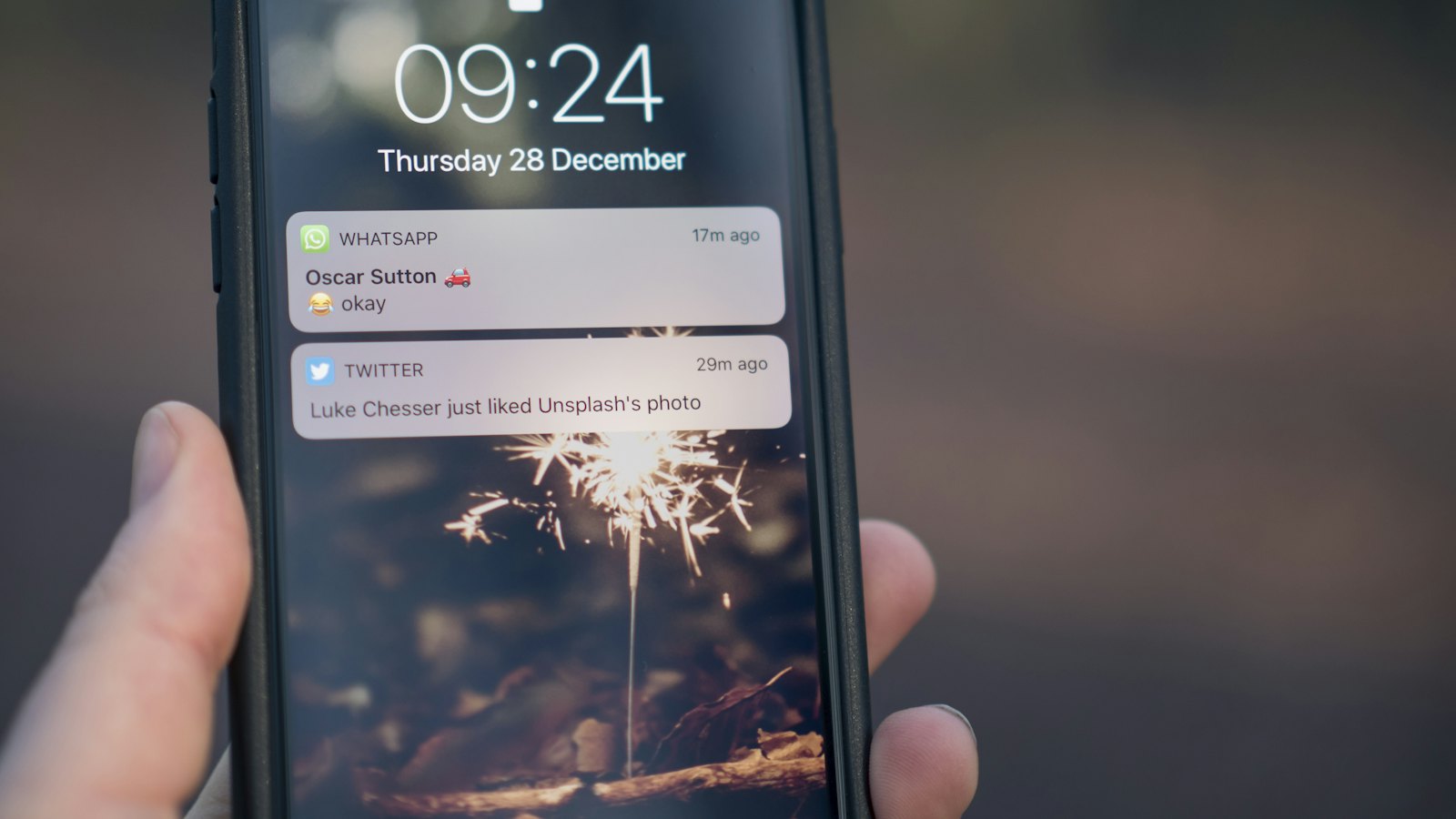
Your phone keeps showing alerts: "Your device is infected with 4 viruses!", "You have won an iPhone!", "Clean your phone now!" They appear even when you are not browsing. It feels like your phone has been hacked, but usually something simpler happened: a website tricked you into allowing notifications, and now it can send you alerts whenever it likes.
How the trick works
Browsers let websites ask permission to send notifications, which is useful for news or messaging sites. Scam sites abuse this with fake prompts such as:
- "Click Allow to confirm you are not a robot."
- "Click Allow to watch the video."
- "Click Allow to continue to the download."
- "Click Allow to verify your age."
Once you tap Allow, the site can push notifications to your device through the browser, including fake virus warnings, prize claims, dating adverts and links to scam pages.
Never click Allow on a notification request from a site you do not trust. Real robot checks, videos and downloads do not need notification permission.
How to tell these apart from real alerts
- The notification shows the browser's name (such as Chrome) and a website address, not a system or security app.
- It uses alarming language and asks you to tap immediately.
- It appears repeatedly, often with different "threats" or "prizes".
See real vs fake security warnings for more.
How to turn them off
Android (Chrome)
- Long-press the notification and tap the settings icon, or open Chrome and go to Settings, then Notifications (or Site settings, then Notifications).
- Find the website in the list and turn off or remove its permission.
iPhone and iPad
- Go to Settings, then Notifications.
- Look for the website or web app in the list and turn off Allow Notifications.
Windows and Mac browsers
- Open your browser's settings and search for "notifications".
- Remove any sites you do not recognise from the "allowed" list.
- Consider setting new sites to not ask for permission.
Menu names vary slightly between browser versions. If you cannot find the setting, search your browser's official help pages.
Also check for
- Unknown browser extensions, which can inject adverts and redirects. Remove any you did not add.
- Apps you installed from a notification. Uninstall them. See fake apps.
- Subscriptions you may have signed up to by tapping a prize notification. Check your phone bill and card statements.
- A website, not a security app, is sending the alert.
- Alarming claims and a request to tap.
- What to do: do not tap; remove the site's notification permission.
Unsure about a link from a notification? Copy it into CyberWatch AI Scan for a free check.
Notification spam often leads to tech support pop-up scams. For the bigger picture of how online scams work, read our complete guide.
Frequently asked questions
Do these notifications mean my phone has a virus?
Usually not. They are normally push notifications from a website you allowed, often without realising. Turning off that site's permission stops them.
Why did a site ask me to click Allow to prove I am not a robot?
It is a trick. Genuine robot checks do not use the browser's notification permission. Clicking Allow lets the site send you alerts at any time.
Is it safe to click the notifications to clear the 'viruses'?
No. Do not tap them. They lead to scam pages, fake apps or subscriptions. Remove the site's notification permission instead.
Sources
- Malware: How To Protect Against, Detect, and Remove It, US Federal Trade Commission
- How To Spot, Avoid, and Report Tech Support Scams, US Federal Trade Commission
- Device security guidance, UK National Cyber Security Centre